How to Create a QR Code for Free: Step-by-Step Guide (2026)
QR codes are everywhere today. You can find them on restaurant menus, product packaging, posters, business cards, event tickets, advertisements, and even classroom materials.
The good news is that you don't need technical skills or expensive software to create one. With a free QR code generator like QrFuse, you can turn a website link, text, contact information, or other content into a scannable QR code in just a few seconds.
In this guide, you'll learn how to create a QR code for free, how QR codes work, what you can put inside them, and how to make sure your QR code works correctly.
What Is a QR Code?
A QR code, short for Quick Response code, is a two-dimensional barcode that can store information.
Unlike traditional barcodes, which generally store information horizontally, QR codes use a square pattern that can hold more information and can be scanned from different directions.
When someone scans a QR code with a smartphone camera, the encoded information is recognized and displayed or opened automatically.
For example, a QR code can open:
- A website
- A Google Maps location
- A Wi-Fi network
- Contact information
- Plain text
- A social media profile
- A digital menu
- An online form
How to Create a QR Code for Free
Creating a QR code is simple. You can follow these steps even if you've never created one before.
Step 1: Decide What You Want Your QR Code to Do
First, decide what information you want people to access after scanning.
For example, you might want your QR code to:
- Open your website
- Share a product page
- Display text
- Share contact details
- Connect visitors to Wi-Fi
- Open an online form
If you're creating a QR code for a business, choose the destination carefully because everyone who scans the code will be directed there.
Step 2: Enter Your Information
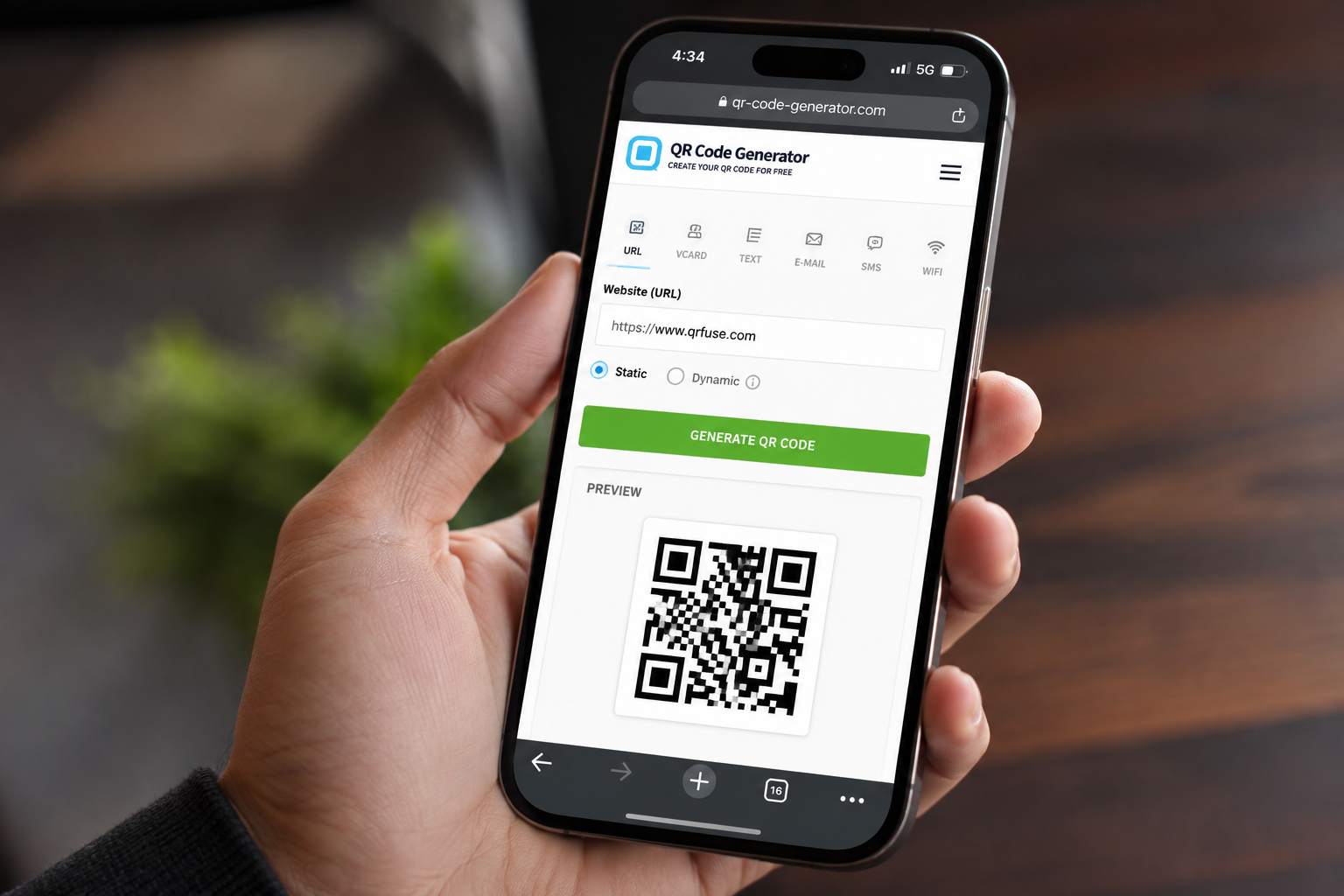
Open a QR code generator and select the type of information you want to encode.
For a website QR code, simply enter the complete URL.
For example:
"https://example.com"
Make sure the URL is correct before generating the code. A QR code cannot fix an incorrect website address.
Step 3: Generate Your QR Code
Once you've entered your information, generate the QR code.
The generator converts your information into a square pattern of black-and-white modules that a smartphone can recognize.
With QrFuse, you can create a QR code quickly without needing to install software or understand how QR codes work technically.
Step 4: Scan and Test the QR Code
This step is extremely important.
Before printing or publishing your QR code, scan it with a smartphone.
Check that:
- The code scans quickly
- It opens the correct destination
- The URL works
- The information is correct
- The code is easy to scan
Never assume that a QR code works just because it was generated successfully.
Step 5: Download and Use Your QR Code
After testing, download the QR code and use it wherever you need it.
You can place it on:
- Posters
- Flyers
- Business cards
- Product packaging
- Restaurant menus
- Brochures
- Event invitations
- Presentations
- Signs
- Websites
What Can You Put in a QR Code?
QR codes aren't limited to website links. Depending on the generator you use, they can contain different types of information.
Website URL
One of the most common uses is sending people directly to a website.
For example, a business could put a QR code on a flyer that opens its website.
Plain Text
You can also encode simple text.
This can be useful for instructions, short messages, information cards, or educational materials.
Contact Information
A QR code can make it easier for people to access contact information without manually typing a phone number or email address.
Wi-Fi Information
A Wi-Fi QR code can allow guests to connect to a wireless network without manually entering a long password.
Social Media
QR codes can also be used to direct people to social media profiles or pages.
Where Can QR Codes Be Used?
QR codes are useful in many different situations.
Businesses
Businesses can use QR codes to send customers to:
- Websites
- Product pages
- Online stores
- Contact forms
- Social media
- Customer feedback forms
Restaurants
Restaurants can place QR codes on tables to open digital menus.
This can reduce the need for printed menus and make menu updates easier.
Education
Schools, colleges, and teachers can use QR codes to share:
- Study materials
- Online forms
- Videos
- Assignments
- Educational websites
Events
QR codes can be printed on invitations, tickets, posters, and event materials to provide additional information.
Marketing
Marketers can use QR codes to connect physical advertising with digital content.
For example, a poster can contain a QR code that takes customers directly to a product page.
Static vs. Dynamic QR Codes
One important thing to understand is the difference between static and dynamic QR codes.
Static QR Codes
A static QR code stores the information directly in the code.
If you encode a website URL and later change the URL, the QR code itself generally needs to be replaced with a new one.
Static QR codes are useful when the destination will remain the same.
Dynamic QR Codes
Dynamic QR codes typically redirect through a service that allows the destination to be changed later.
This can be useful for businesses and marketing campaigns where the destination may change over time.
However, dynamic QR codes often depend on an external service and may require a paid plan.
For simple, permanent information, a static QR code can be all you need.
Tips for Creating a QR Code That Scans Reliably
Generating a QR code is only the first step. You also need to make sure people can scan it easily.
- Use Good Contrast
The QR code should have strong contrast between the code and its background.
A dark code on a light background is generally easy for cameras to recognize.
2. Don't Make It Too Small
If you're printing a QR code, make sure it is large enough for people to scan comfortably.
A QR code that is too small may become difficult to scan, especially from a distance.
3. Keep the Code Clear
Avoid placing images, text, or other design elements over important parts of the QR code.
If you customize a QR code, always test it afterward.
4. Test Before Printing
Always scan your final QR code before sending a design to print.
This simple step can prevent a broken QR code from appearing on hundreds or thousands of printed materials.
5. Test From the Intended Distance
If a QR code will be placed on a large poster, test it from the distance where people will actually scan it.
A code that works when your phone is a few centimeters away may not work well from several meters away.
Are Free QR Codes Really Free?
Yes, QR codes themselves don't require a fee.
A static QR code can be generated and used without paying for the QR technology itself.
However, some QR code services charge for additional features such as:
- Dynamic QR codes
- Scan analytics
- Editable destinations
- Advanced customization
- Campaign tracking
For basic uses such as sharing a website, text, or other permanent information, a free QR code generator may be enough.
Why Use a QR Code Instead of a Link?
A QR code is particularly useful when your audience is looking at something physical.
Imagine a customer sees a restaurant poster. They can't easily click a printed URL.
With a QR code, they can simply point their phone camera at the code and open the digital destination.
This makes QR codes useful for connecting offline experiences with online content.
Frequently Asked Questions
Can I create a QR code for free?
Yes. You can create a basic QR code for free using an online QR code generator such as QrFuse.
Do QR codes expire?
A static QR code does not normally expire by itself. If the information encoded in it remains valid, the QR code can continue to work.
However, a QR code pointing to a website will stop being useful if that website or URL no longer exists.
Can I create a QR code for a website?
Yes. Website URLs are one of the most common things encoded in QR codes. Enter the URL into a QR code generator and generate the code.
Can I create a QR code on my phone?
Yes. You can use an online QR code generator from a smartphone browser without installing special software.
Do I need an app to create a QR code?
No. An online QR code generator can create QR codes directly in your web browser.
Should I test my QR code before using it?
Absolutely. Always scan the final QR code before printing or publishing it to make sure it directs users to the correct destination.
Create Your QR Code With QrFuse
Creating a QR code doesn't have to be complicated.
Whether you need a QR code for a website, text, business card, marketing campaign, event, restaurant menu, or another purpose, you can create one quickly using an online generator.
Ready to create yours?
👉 Create a free QR code with QrFuse.
Generate your QR code, scan it to test it, download it, and start using it wherever you need.
Final Thoughts
QR codes are a simple way to connect physical materials with digital information.
The basic process is straightforward: choose your content, enter the information, generate the QR code, test it, and use it.
The most important thing is not simply creating a QR code—it's making sure the code is clear, readable, and sends users to the correct destination.
With the right QR code generator, you can create and use a QR code in just a few moments.